
Drop receipt photos into a folder, run one command, and get a spreadsheet with the date, shop, currency, tax and total of each one. The app also adds up every receipt and flags the ones that don’t balance. It all runs on your own laptop, so your spending stays private.
Along the way you learn structured output: making a local AI model return data your code can use, instead of a paragraph of chat.
What you will build
Here is the real output of our run on six sample receipts:

diner.jpg is flagged because it has a $6 tip that our data model doesn’t include. The model read it correctly. The check noticed that the numbers alone didn’t explain the total.
What you need
- A computer that runs Ollama. We tested on macOS 27.2.1 with an Apple M3 Pro and 36 GB of memory. We did not test Windows, Linux or an 8 GB machine.
ollama psshowed the 4B model using 3.7 GB and the 2B model 2.2 GB. - Disk: 3.3 GB for the 4B model, or 1.9 GB for the 2B one.
- Ollama (we used 0.40.17) and uv (we used 0.7.13).
- Time: about 20 minutes plus the download.
- Cost: free. No account or API key.
You need basic Python. You don’t need any machine learning.
Step 1: Pull a vision model
A vision model accepts images as well as text.
ollama pull qwen3-vl:4b-instructIt ends with success, and ollama list shows:
qwen3-vl:4b-instruct 84f7ed8042fa 3.3 GBShort on memory? Pull the smaller one and use it in Step 4:
ollama pull qwen3-vl:2b-instructStep 2: Create the project
mkdir receipts-app && cd receipts-app
uv init --no-workspace --python 3.12 .
uv add ollama pydantic pillow
We got ollama 0.6.3, pydantic 2.14.4 and pillow 13.0.0. Pydantic describes the data you want. Pillow only draws the sample receipts.
Step 3: Make sample receipts with known answers
Starting with made-up receipts means you know every correct answer, so you can measure the AI instead of hoping. Save this as make_samples.py:
"""Draw six made-up receipts plus the correct answers, so we can grade the AI."""
import json
from pathlib import Path
from PIL import Image, ImageDraw, ImageFilter, ImageFont

RECEIPTS = {
    "cafe": ("MAPLE CORNER CAFE", "2026-11-03", "USD",
             [("Flat white", 2, 9.00), ("Almond croissant", 1, 4.25), ("Orange juice", 1, 3.75)], 1.36),
    "hardware": ("BOLT & BRACKET", "2026-11-07", "USD",
                 [("Wood screws 40mm", 3, 14.97), ("Paint roller", 1, 8.49), ("Masking tape", 2, 7.98), ("Sandpaper pack", 1, 5.25)], 2.94),
    "books": ("PAPER LANTERN BOOKS", "2026-11-12", "GBP",
              [("Python for Everyone", 1, 24.99), ("Notebook A5", 4, 15.96)], 0.00),
    "grocery": ("GREEN BASKET MARKET", "2026-11-15", "EUR",
                [("Bananas", 1, 1.89), ("Oat milk", 2, 4.58), ("Sourdough loaf", 1, 3.95),
                 ("Cherry tomatoes", 1, 2.49), ("Cheddar 400g", 1, 5.79), ("Olive oil", 1, 8.99)], 1.94),
    "taxi": ("CITY HOP TAXI", "2026-11-19", "USD",
             [("Airport ride", 1, 38.50), ("Luggage fee", 1, 4.00)], 3.40),
    "diner": ("RED STOOL DINER", "2026-11-21", "USD",
              [("Veggie burger", 2, 23.00), ("Lemonade", 2, 7.00)], 2.40),
}


def load_font(size):
    # Pillow's built-in font has no pound or euro sign, so use a system font.
    for name in ("Arial.ttf", "arial.ttf", "DejaVuSans.ttf"):
        try:
            return ImageFont.truetype(name, size)
        except OSError:
            pass
    raise SystemExit("No font found. Put any .ttf file here and add its name to load_font().")


SYMBOL = {"USD": "$", "GBP": "£", "EUR": "€"}
Path("receipts").mkdir(exist_ok=True)
truth = {}
for name, (shop, date, cur, items, tax) in RECEIPTS.items():
    s = SYMBOL[cur]
    subtotal = round(sum(price for _, _, price in items), 2)
    tip = 6.00 if name == "diner" else 0
    total = round(subtotal + tax + tip, 2)
    img = Image.new("RGB", (640, 422 + 42 * len(items)), "#fdfcf8")
    d = ImageDraw.Draw(img)
    big, f = load_font(36), load_font(26)
    d.text((320, 50), shop, "#222", font=big, anchor="mm")
    d.text((320, 100), f"Date: {date}", "#222", font=f, anchor="mm")
    y = 160
    for item, qty, price in items:
        d.text((40, y), f"{qty} x {item}", "#222", font=f)
        d.text((600, y), f"{s}{price:.2f}", "#222", font=f, anchor="ra")
        y += 42
    d.line((40, y + 8, 600, y + 8), "#222", 2)
    lines = [("Subtotal", subtotal), ("Tax", tax), ("Tip", tip), ("TOTAL", total)]
    for label, value in lines:
        if label == "Tip" and not tip:
            continue
        y += 42
        d.text((40, y), label, "#222", font=f)
        d.text((600, y), f"{s}{value:.2f}", "#222", font=f, anchor="ra")
    d.text((320, y + 72), "Thank you!", "#222", font=f, anchor="mm")
    # Make it look like a phone photo: tilted on a desk, slightly blurred.
    img = img.rotate(2, expand=True, fillcolor="#8b7355", resample=Image.Resampling.BICUBIC)
    img.filter(ImageFilter.GaussianBlur(0.8)).save(f"receipts/{name}.jpg", quality=80)
    truth[f"{name}.jpg"] = {"merchant": shop, "date": date, "currency": cur, "tax": tax, "total": total, "items": len(items)}
Path("truth.json").write_text(json.dumps(truth, indent=2))
print(f"Wrote {len(truth)} receipts and truth.json")
Run it:
uv run make_samples.pyWrote 6 receipts and truth.jsonEach image is tilted and slightly blurred:
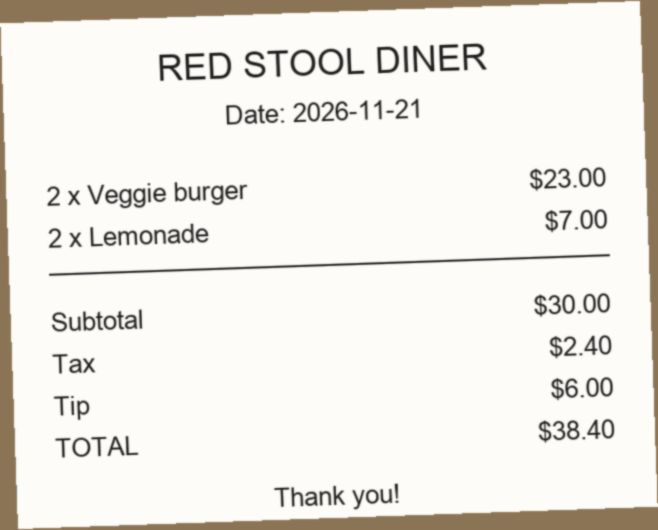
Always open one and look. Our first version had a bug that only showed up in the picture (see Troubleshooting).
Step 4: Write the receipt reader
Save this as receipts.py:
"""Turn a folder of receipt photos into a spreadsheet, using a local vision model."""
import argparse
import csv
import json
import time
from datetime import date
from pathlib import Path

import ollama
from pydantic import BaseModel, Field, ValidationError

FOLDER = Path("receipts")
OUT = Path("expenses.csv")
PROMPT = """Read this receipt and fill in the fields.
Copy numbers exactly as printed. line_total is the price printed at the end of the line.
Do not calculate or guess anything. If no tax is printed, use 0."""


class Item(BaseModel):
    name: str
    quantity: int
    line_total: float


class Receipt(BaseModel):
    merchant: str
    purchase_date: date = Field(description="YYYY-MM-DD")
    currency: str = Field(description="3-letter code, for example USD", pattern="^[A-Z]{3}$")
    items: list[Item]
    tax: float
    total: float


def read_receipt(path, model):
    reply = ollama.chat(
        model=model,
        messages=[{"role": "user", "content": PROMPT, "images": [str(path)]}],
        format=Receipt.model_json_schema(),
        options={"temperature": 0, "num_ctx": 4096, "num_predict": 1000},
    )
    return Receipt.model_validate_json(reply.message.content)


def check(r):
    """The schema guarantees the shape. This checks that the numbers agree."""
    expected = round(sum(i.line_total for i in r.items) + r.tax, 2)
    if abs(expected - r.total) > 0.01:
        return f"items + tax = {expected:.2f}, but total = {r.total:.2f}"
    return ""


def grade(results):
    truth = json.loads(Path("truth.json").read_text())
    right = seen = 0
    for name, r in results.items():
        if name not in truth:
            continue
        got = {"merchant": r.merchant, "date": r.purchase_date.isoformat(), "currency": r.currency,
               "tax": r.tax, "total": r.total, "items": len(r.items)}
        for field, want in truth[name].items():
            seen += 1
            if got[field] == want:
                right += 1
            else:
                print(f"  WRONG {name} {field}: got {got[field]!r}, want {want!r}")
    print(f"Graded: {right} of {seen} fields correct")


def main():
    ap = argparse.ArgumentParser()
    ap.add_argument("--model", default="qwen3-vl:4b-instruct")
    ap.add_argument("--grade", action="store_true", help="compare with truth.json")
    args = ap.parse_args()
    rows, results = [], {}
    paths = sorted(p for p in FOLDER.iterdir() if p.suffix.lower() in {".jpg", ".jpeg", ".png"})
    for path in paths:
        start = time.time()
        try:
            r = read_receipt(path, args.model)
        except ValidationError as e:
            print(f"{path.name:14} FAILED: {e.errors()[0]['msg']}")
            rows.append([path.name, "", "", "", "", "", "unreadable"])
            continue
        results[path.name] = r
        problem = check(r)
        status = "CHECK" if problem else "ok"
        print(f"{path.name:14} {status:5} {r.merchant}  {r.total:.2f} {r.currency}  ({time.time() - start:.1f}s) {problem}")
        rows.append([path.name, r.purchase_date, r.merchant, r.currency, r.tax, r.total, problem or "ok"])
    with OUT.open("w", newline="", encoding="utf-8") as f:
        w = csv.writer(f)
        w.writerow(["file", "date", "merchant", "currency", "tax", "total", "status"])
        w.writerows(rows)
    print(f"Wrote {len(rows)} rows to {OUT}")
    if args.grade:
        grade(results)


if __name__ == "__main__":
    main()
Run it and grade the answers:
uv run receipts.py --gradeYou should see output like the screenshot above, ending with:
Wrote 6 rows to expenses.csv
Graded: 36 of 36 fields correct
To use the smaller model:
uv run receipts.py --model qwen3-vl:2b-instruct --gradeStep 5: Open your spreadsheet
Open expenses.csv in Excel, Numbers, LibreOffice or Google Sheets. (Google Sheets uploads the file, so skip it if you want to stay offline.) Ours contains:
file,date,merchant,currency,tax,total,status
books.jpg,2026-11-12,PAPER LANTERN BOOKS,GBP,0.0,40.95,ok
cafe.jpg,2026-11-03,MAPLE CORNER CAFE,USD,1.36,18.36,ok
diner.jpg,2026-11-21,RED STOOL DINER,USD,2.4,38.4,"items + tax = 32.40, but total = 38.40"
grocery.jpg,2026-11-15,GREEN BASKET MARKET,EUR,1.94,29.63,ok
hardware.jpg,2026-11-07,BOLT & BRACKET,USD,2.94,39.63,ok
taxi.jpg,2026-11-19,CITY HOP TAXI,USD,3.4,45.9,ok
When you use your own photos, delete the samples, put JPG or PNG files in receipts/, and run uv run receipts.py without --grade.
How does Ollama structured output work?

There are three layers, and each catches a different mistake:
- The schema.
Receipt.model_json_schema()turns the Python class into a JSON schema. Passing it asformat=tells Ollama which fields to produce. Without it, we asked for “this receipt as JSON” and gotstore_nameinstead ofmerchant, quantities as text ("2"), and an extramessagefield. - Pydantic.
model_validate_jsonparses the reply into real Python types. A bad date or broken JSON raises an error, and the app records that receipt as unreadable. - The check. Valid JSON can still hold wrong numbers.
check()adds the items and tax and compares the result with the total.
temperature: 0 makes answers more repeatable, which Ollama’s documentation also recommends. num_predict: 1000 stops a runaway reply.
How accurate is a local model at reading receipts?
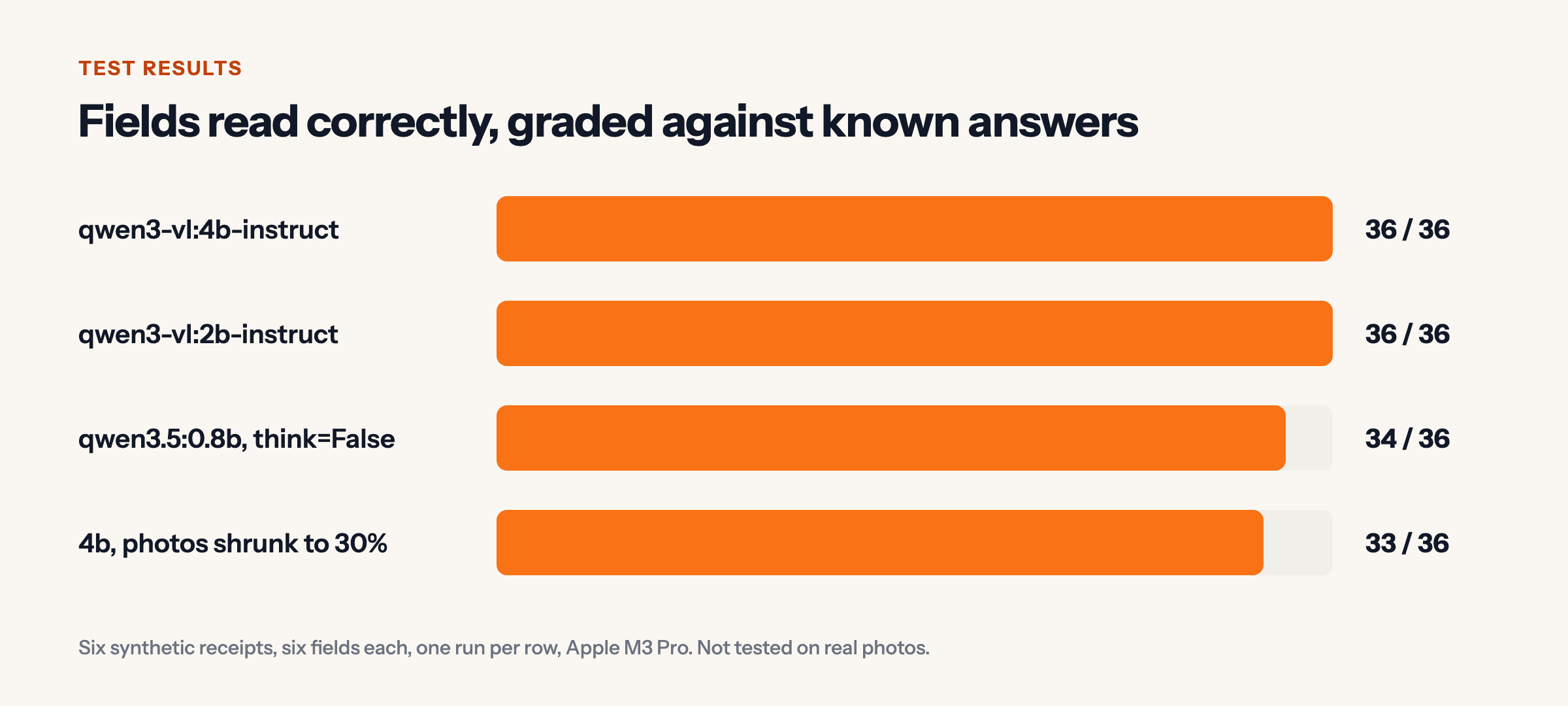
On our clean samples, both qwen3-vl models got every field right. The 4B took 6.8 to 9.8 seconds per receipt and the 2B took 4.1 to 5.8.
Then we shrank the photos to 30% of their size. The 4B model got 33 of 36. Two lessons came from that:
- The check flagged
books.jpgandgrocery.jpg, where misread numbers no longer added up. - It missed
cafe.jpg. The model read the tax as 1.38 instead of 1.36 and the total as 18.38 instead of 18.36. The two errors matched, so the math balanced.
So ok means “the numbers agree with each other”, not “this is correct”. These are six synthetic receipts and one run per setup. We did not test crumpled, faded or handwritten ones. Spot-check anything you file for tax or expenses.
Troubleshooting
The currency comes back wrong or strange (we saw XNQ). This was our own bug. Pillow’s built-in font has no £ or € sign, so it drew empty boxes. The 4B model answered XNQ and the 2B guessed USD. Note that XNQ passed our three-letter pattern: a schema can’t tell you a value is real. The script above uses a system font instead.
Invalid JSON: EOF while parsing a value at line 1 column 0. The reply was empty. We hit this with qwen3.5:0.8b, which thinks by default. On books.jpg it spent all 1,000 allowed tokens thinking (done_reason was length) and never answered. Adding think=False to ollama.chat fixed it. With that, all six receipts were readable and 34 of 36 fields matched, though it called the cafe “2 x Flat white”.
image input is not supported - hint: if this is unexpected, you may need to provide the mmproj. You picked a text-only model. We got this with qwen3:4b-instruct. Run ollama show <model> and look for vision under Capabilities.
My iPhone photos are ignored. iPhones can save HEIC, and the app only picks up JPG and PNG. On a Mac, convert one like this (we tested the conversion):
sips -s format jpeg receipts/photo.heic --out receipts/photo.jpgMake it yours
- Handle tips. Add
tip: floattoReceipt, mention it in the prompt, and include it incheck(). You will need this for the diner receipt. - Add categories. Add
category: Literal["food", "travel", "office", "other"]so the model must pick from your list. - Catch the cafe mistake. Add
subtotal: floatand check the items against it. A second check is harder to fool.
Challenge: build it, point it at one of your own receipts, and tell us in the comments which field the model got wrong first.
FAQ
Can Ollama read text from images? Yes, with a vision model such as qwen3-vl. Text-only models reject images.
Do I still need OCR software? Not for this project. The vision model reads the picture directly. For large volumes, a dedicated OCR tool may be faster, but we didn’t compare them.
Does structured output guarantee correct answers? No. It guides the format. You still need validation and a sanity check, as the cafe example shows.
Does this work without internet? After you download the model and packages, the app talks only to Ollama on your computer. We didn’t test it with the network switched off.
Summary
You built a local app that turns receipt photos into a CSV, using a schema for shape, Pydantic for types and simple arithmetic for trust. The same pattern works for invoices, business cards or meter readings: change the class, the prompt and the check.
Keep going:
- Create a narrated video with a local LLM
- OpenRouter for beginners: free models
- Multi-agent systems: orchestrator and workers
Sources
Checked on 25 November 2026. Everything else comes from our own runs.
- Ollama documentation, Structured Outputs
- Ollama documentation, Vision
- Ollama library, qwen3-vl tags (model sizes)


Join the discussion