
Making a video usually means a lot of tools, a subscription for the voice-over, and a pile of footage to edit. What if you could type a few lines describing a video and get back a finished MP4 with slides and a natural voice-over, all on your own computer?
In this tutorial you will create a narrated video with a local LLM. An open language model writes the script, an open text-to-speech model speaks it, and ffmpeg assembles the result. It is free, it works offline, and no API key is involved. Your text never leaves your machine.
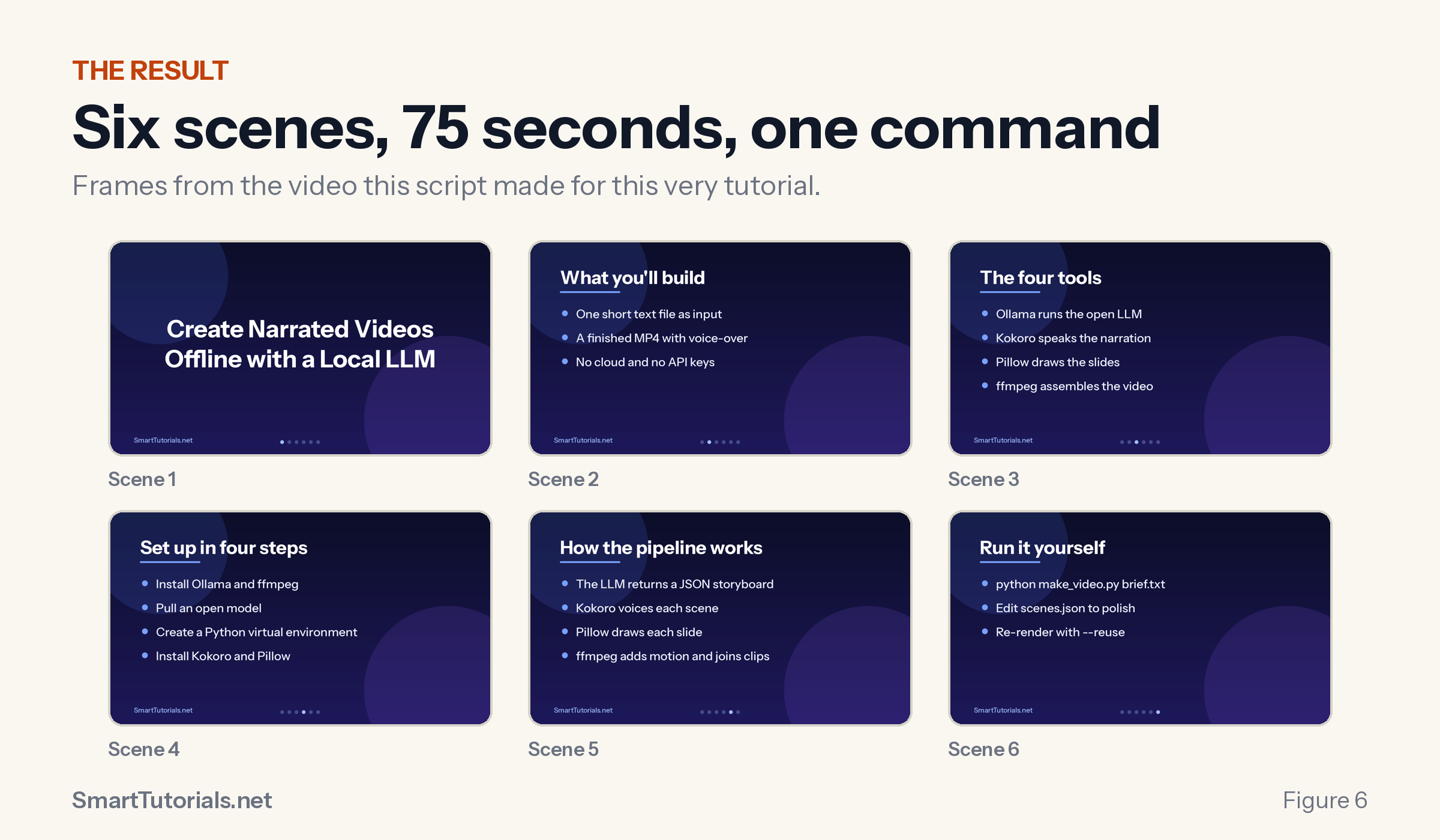
The video above was made with the script from this tutorial. Prefer YouTube? Watch it there and subscribe for more.

In this guide
- What you will build
- What you need
- Step 1. Install ffmpeg and Python tools
- Step 2. Install Ollama and download an open LLM
- Step 3. Create the project folder and Python environment
- Step 4. Download the voice (Kokoro text-to-speech)
- Step 5. Download the font
- How the local LLM video pipeline works
- The complete Python script
- Step 6. Make your first video
- Step 7. Polish the video with the edit loop
- Troubleshooting
- Make it yours
- Frequently asked questions
- Summary
What you will build
You will build one Python script, make_video.py, that turns a plain-text brief into a narrated video. It uses four open source tools:
| Job | Tool | What it does |
|---|---|---|
| Write the storyboard | Ollama running an open LLM (gpt-oss, 20B) |
Turns your brief into scenes: headline, bullets and narration |
| Speak the narration | Kokoro text-to-speech | Natural-sounding voice that runs on the CPU |
| Draw the slides | Pillow | One 1920×1080 image per scene |
| Animate and assemble | ffmpeg | Slow zoom, fades, audio and the final MP4 |

Key takeaways
- A local LLM writes the content. The layout and editing are ordinary code, so the result is predictable.
- The length of each voice-over decides the length of each scene, so picture and sound always match.
- You edit one JSON file to polish the video, and re-rendering takes under a minute.
Scope. This is not a text-to-video generator. It is a fast, reliable way to produce explainer and tutorial videos where you stay in control of every word.
Tested on: Debian-based Linux (Kali), Python 3.14, 16 CPU threads, 62 GB RAM and a 4 GB NVIDIA GPU. For a 6-scene, 75-second video, the LLM step took about 2 to 3 minutes and the voice and rendering about 45 seconds. A smaller model is faster.
What you need
| You need | Notes |
|---|---|
Linux (commands use apt) |
macOS and Windows should work with small changes, see the section on other systems below. I have only tested Linux. |
| 8 GB of RAM or more | More RAM lets you run larger models. A GPU helps but is not required. |
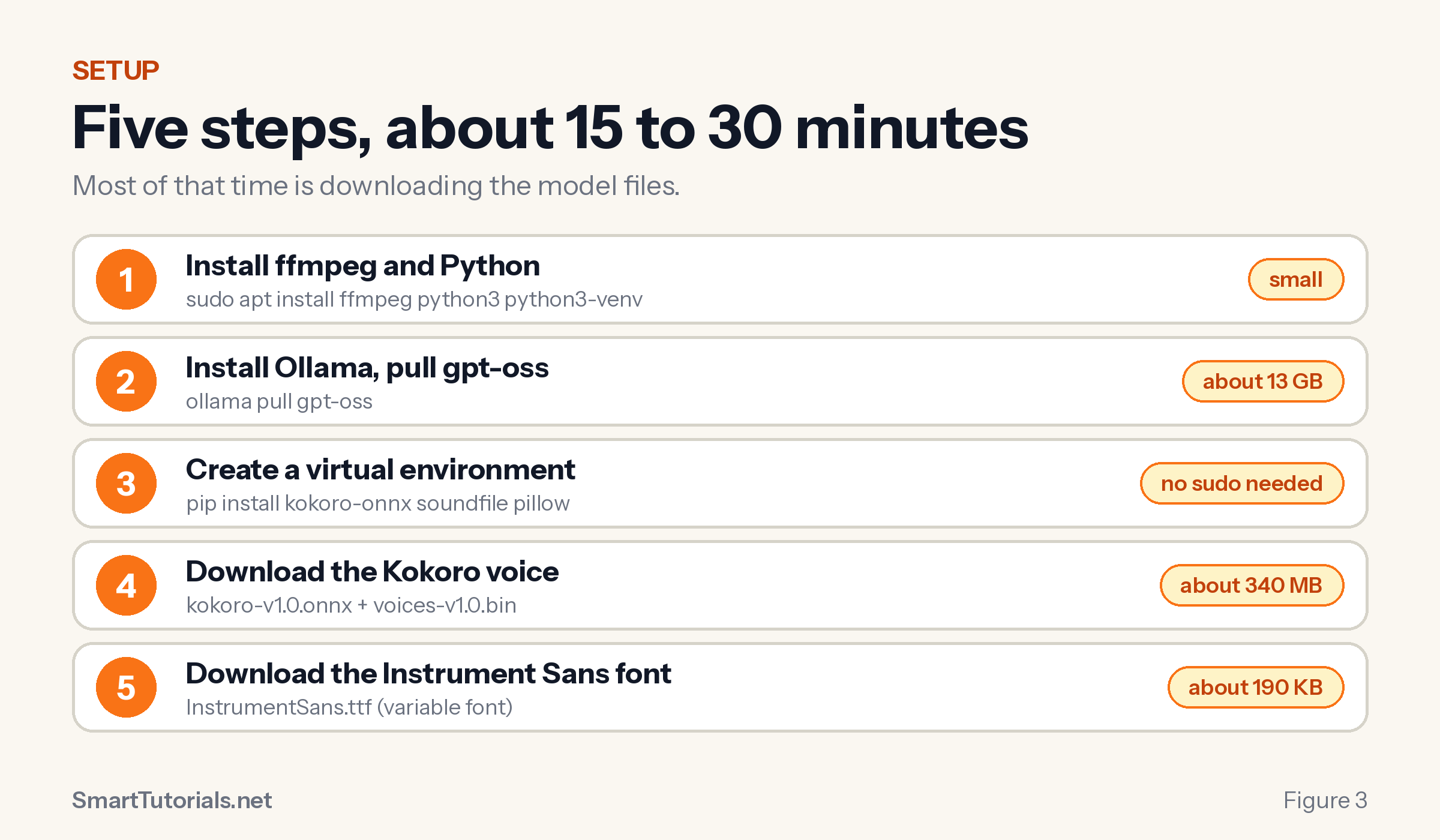
| About 15 GB of free disk | 13 GB for the gpt-oss model, about 340 MB for the voice, plus Python packages. A 3B model needs only about 2 GB. |
| An internet connection for setup | After setup, everything runs offline. |
Estimated setup time: 15 to 30 minutes, mostly downloads.
Step 1. Install ffmpeg and Python tools
sudo apt update
sudo apt install -y ffmpeg python3 python3-venv curl
Check that ffmpeg is installed:
ffmpeg -version | head -1
Step 2. Install Ollama and download an open LLM
Ollama runs open language models on your own machine. Install it with the official script:
curl -fsSL https://ollama.com/install.sh | sh
Download a model. This tutorial uses gpt-oss (20 billion parameters, about 13 GB):
ollama pull gpt-oss
Test it:
ollama run gpt-oss "Say hello in five words"
You should see a short reply. Press Ctrl+D to exit.
Smaller computer? Try a model of about 3 billion parameters, such as llama3.2:3b or qwen2.5:3b, and pass its name with --model later. Small models are much faster but write plainer scripts, and they are more likely to return broken JSON. I tested only gpt-oss, so check the result when you try another model.
Step 3. Create the project folder and Python environment
mkdir -p ~/ai-video/fonts ~/ai-video/models
cd ~/ai-video
python3 -m venv venv
./venv/bin/pip install kokoro-onnx soundfile pillow
A virtual environment keeps every package inside this folder. It needs no sudo and it does not touch your system Python.
Step 4. Download the voice (Kokoro text-to-speech)
Kokoro is a small open text-to-speech model (Apache 2.0 license) that sounds far more natural than older offline voices. The kokoro-onnx package runs it on the CPU. Download the model file (about 310 MB) and the voices file (about 27 MB):
cd ~/ai-video
R=https://github.com/thewh1teagle/kokoro-onnx/releases/download/model-files-v1.0
curl -L -o models/kokoro-v1.0.onnx $R/kokoro-v1.0.onnx
curl -L -o models/voices-v1.0.bin  $R/voices-v1.0.bin
Test the voice:
./venv/bin/python - <<'EOF'
import soundfile as sf
from kokoro_onnx import Kokoro

tts = Kokoro("models/kokoro-v1.0.onnx", "models/voices-v1.0.bin")
samples, rate = tts.create("Hello from my own computer.", voice="am_michael", speed=1.0, lang="en-us")
sf.write("test.wav", samples, rate)
EOF
ffplay -autoexit -nodisp test.wav
ffplay comes with ffmpeg on most systems. If it is missing, open test.wav in any audio player.
Choosing a voice. The script takes a --voice option. A few good English voices:
| Voice | Style |
|---|---|
am_michael |
Male, American (the default in this tutorial) |
af_heart |
Female, American |
bf_emma |
Female, British |
bm_george |
Male, British |
Run tts.get_voices() in Python to list all of them. British voices sound best with lang="en-gb".
Step 5. Download the font
The slides use Instrument Sans, a free font under the SIL Open Font License:
cd ~/ai-video
curl -L -o fonts/InstrumentSans.ttf \
  "https://github.com/google/fonts/raw/main/ofl/instrumentsans/InstrumentSans%5Bwdth%2Cwght%5D.ttf"
This is a variable font, so one file provides Regular, Medium, SemiBold and Bold. To use another font, change the FONT path at the top of the script. If you use a static font file, remove the set_variation_by_name line in font().
After steps 1 to 5, your folder looks like this:
~/ai-video/
├── fonts/InstrumentSans.ttf
├── models/kokoro-v1.0.onnx
├── models/voices-v1.0.bin
└── venv/
How the local LLM video pipeline works
The script runs five stages. Each stage hands a simple file to the next one.

- Storyboard. The script asks the LLM for JSON: a list of scenes, each with a
headline, up to fourbulletsand anarration. - Voice. Kokoro reads each narration into a WAV file. The script measures the WAV length, because the audio length decides how long each scene lasts. This keeps picture and voice in sync with no manual timing.
- Slides. Pillow draws a slide for each scene. Long headlines are wrapped into two balanced lines.
- Clips. ffmpeg combines each slide and its audio into a short clip with a slow zoom and a fade in and out.
- Join. ffmpeg joins the clips into
final.mp4.

Three details are worth knowing:
- Do not use Ollama’s
"format": "json"option with reasoning models such asgpt-oss. It returned garbage in my tests. The script instead asks for JSON in the prompt, extracts the{...}block, checks it, and retries up to three times. - Normalize the text. LLMs like typographic characters (non-breaking hyphens, em dashes, curly quotes) that fonts and voices handle badly. The
normalize()function replaces them. - Teach the voice your vocabulary. Text-to-speech models stumble on names such as “ffmpeg”. The
PRONUNCIATIONdictionary rewrites words for the voice only, so the slides still show the real spelling.
The complete Python script
Save this as ~/ai-video/make_video.py:
#!/usr/bin/env python3
"""make_video.py - turn a short brief into a narrated video, fully offline.

LLM (Ollama)  -> writes the storyboard (headline, bullets, narration) as JSON
Kokoro TTS    -> turns each narration into a natural-sounding voice-over
Pillow        -> draws one slide per scene
ffmpeg        -> animates the slides, mixes the audio, joins everything into an MP4

Usage:
    python make_video.py brief.txt --out my_video --model gpt-oss --scenes 6
"""
import argparse, json, re, subprocess, urllib.request
from pathlib import Path

import soundfile as sf
from kokoro_onnx import Kokoro
from PIL import Image, ImageDraw, ImageFont

W, H, FPS = 1920, 1080, 30
HERE = Path(__file__).parent
FONT = HERE / "fonts" / "InstrumentSans.ttf"       # variable font: Regular..Bold
KOKORO_MODEL = HERE / "models" / "kokoro-v1.0.onnx"
KOKORO_VOICES = HERE / "models" / "voices-v1.0.bin"

# Words the voice tends to mispronounce -> how to spell them for the voice only.
PRONUNCIATION = {
    "SmartTutorials.net": "Smart Tutorials dot net",
    "smarttutorials.net": "smart tutorials dot net",
    "ffmpeg": "eff eff em peg",
    "Ollama": "oh-lama",
    "LLM": "L L M",
    "LLMs": "L L Ms",
    "TTS": "text to speech",
    "MP4": "M P 4",
    "JSON": "jay-son",
    "RAG": "rag",
}


# ---------- 1. The LLM writes the storyboard ----------
def ask_llm(brief, model, n_scenes):
    prompt = f"""You write storyboards for short narrated tutorial videos.
Brief:
{brief}

Return ONLY JSON with this shape:
{{"scenes": [{{"headline": "max 8 words", "bullets": ["max 4 short bullets, max 7 words each"], "narration": "1-2 spoken sentences, plain text, no emojis"}}]}}
Rules: exactly {n_scenes} scenes. Scene 1 is the title card (empty bullets list). The last scene is a call to action.
Write narration the way a calm, friendly person would say it aloud: contractions, no hype."""
    # NOTE: no "format": "json" here - reasoning models such as gpt-oss break with it.
    body = json.dumps({"model": model, "prompt": prompt, "stream": False,
                       "options": {"temperature": 0.6}}).encode()
    for attempt in range(1, 4):
        req = urllib.request.Request("http://localhost:11434/api/generate", body,
                                     {"Content-Type": "application/json"})
        with urllib.request.urlopen(req, timeout=900) as r:
            text = json.load(r)["response"]
        m = re.search(r"\{.*\}", text, re.S)  # grab the JSON object even if the model adds chatter
        try:
            scenes = json.loads(m.group(0))["scenes"]
            assert len(scenes) >= 2 and all("narration" in s and "headline" in s for s in scenes)
            return scenes
        except Exception as e:
            print(f"  attempt {attempt}: could not parse the LLM answer ({e}); retrying")
    raise SystemExit("The LLM did not return valid JSON after 3 attempts")


def normalize(s):
    """Replace typographic characters that fonts and voices handle badly."""
    s = s.replace("‑", "-").replace("—", ", ").replace("–", "-")
    s = s.replace("’", "'").replace("‘", "'").replace("“", '"').replace("”", '"')
    return re.sub(r"\s+", " ", s).strip()


def for_voice(s):
    s = normalize(s)
    for word, spoken in PRONUNCIATION.items():
        s = re.sub(rf"\b{re.escape(word)}(?![\w])", spoken, s) if word[0].isalnum() else s.replace(word, spoken)
    return s


# ---------- 2. Slides ----------
def font(size, weight="Regular"):
    f = ImageFont.truetype(str(FONT), size)
    f.set_variation_by_name(weight)
    return f


def background():
    im = Image.new("RGB", (W, H))
    px = im.load()
    for y in range(H):
        t = y / H
        c = (int(12 + 18 * t), int(14 + 10 * t), int(40 + 50 * t))
        for x in range(W):
            px[x, y] = c
    d = ImageDraw.Draw(im, "RGBA")
    for cx, cy, r, col in [(260, 180, 340, (80, 120, 255, 40)), (1700, 900, 420, (140, 90, 255, 36))]:
        d.ellipse([cx - r, cy - r, cx + r, cy + r], fill=col)
    return im


def wrap(d, text, f, max_width, max_lines=2):
    """Split text into at most max_lines lines, as evenly balanced as possible."""
    words = text.split()
    if d.textlength(text, font=f) <= max_width or max_lines == 1 or len(words) < 2:
        return [text]
    best = None
    for i in range(1, len(words)):  # try every split point, keep the most balanced
        a, b = " ".join(words[:i]), " ".join(words[i:])
        widest = max(d.textlength(a, font=f), d.textlength(b, font=f))
        if best is None or widest < best[0]:
            best = (widest, [a, b])
    return best[1]


def draw_scene(scene, index, total, path, brand):
    im = background()
    d = ImageDraw.Draw(im, "RGBA")
    headline = normalize(scene["headline"])
    bullets = [normalize(b) for b in (scene.get("bullets") or [])][:4]
    if not bullets:  # title / closing card: centred, wrapped to two lines
        f = font(120, "Bold")
        lines = wrap(d, headline, f, W - 360)
        y = (H - len(lines) * 150) / 2 - 20
        for line in lines:
            d.text(((W - d.textlength(line, font=f)) / 2, y), line, font=f, fill=(255, 255, 255))
            y += 150
    else:
        f = font(92, "Bold")
        lines = wrap(d, headline, f, W - 320)
        y = 130
        for line in lines:
            d.text((160, y), line, font=f, fill=(255, 255, 255))
            y += 112
        d.rectangle([160, y + 14, 460, y + 22], fill=(120, 160, 255, 255))
        y += 90
        fb = font(60, "Medium")
        for b in bullets:
            d.ellipse([170, y + 20, 198, y + 48], fill=(120, 160, 255, 255))
            d.text((240, y), b, font=fb, fill=(235, 240, 255))
            y += 120
    if brand:
        d.text((130, H - 100), brand, font=font(34, "Medium"), fill=(160, 190, 255, 200))
    gap, r = 36, 9  # progress dots
    x0 = (W - (total - 1) * gap) / 2
    for i in range(total):
        col = (160, 190, 255, 255) if i == index else (160, 190, 255, 80)
        d.ellipse([x0 + i * gap - r, H - 70 - r, x0 + i * gap + r, H - 70 + r], fill=col)
    im.save(path)


# ---------- 3. Voice and video ----------
def synth(tts, text, path, voice, speed):
    samples, rate = tts.create(text, voice=voice, speed=speed, lang="en-us")
    sf.write(str(path), samples, rate)
    return len(samples) / rate


def make_clip(png, wav, dur, out):
    frames = int(dur * FPS)
    vf = (f"zoompan=z='1+0.0002*on':x='iw/2-(iw/zoom/2)':y='ih/2-(ih/zoom/2)':d={frames}:s={W}x{H}:fps={FPS},"
          f"fade=t=in:st=0:d=0.4,fade=t=out:st={dur - 0.4:.2f}:d=0.4,format=yuv420p")
    subprocess.run(["ffmpeg", "-y", "-loglevel", "error", "-loop", "1", "-i", str(png), "-i", str(wav),
                    "-t", f"{dur:.2f}", "-vf", vf,
                    "-af", f"adelay=400,apad,atrim=0:{dur:.2f},afade=t=out:st={dur - 0.4:.2f}:d=0.4",
                    "-c:v", "libx264", "-preset", "medium", "-crf", "18", "-r", str(FPS),
                    "-c:a", "aac", "-ar", "44100", "-b:a", "192k", str(out)], check=True)


def main():
    ap = argparse.ArgumentParser()
    ap.add_argument("brief", help="text file describing the video")
    ap.add_argument("--out", default="video", help="output folder")
    ap.add_argument("--model", default="gpt-oss", help="Ollama model that writes the storyboard")
    ap.add_argument("--scenes", type=int, default=5)
    ap.add_argument("--voice", default="am_michael", help="Kokoro voice, e.g. am_michael, af_heart, bf_emma")
    ap.add_argument("--speed", type=float, default=1.0, help="speaking speed, 0.8 slower .. 1.2 faster")
    ap.add_argument("--brand", default="SmartTutorials.net", help="small text at the bottom-left ('' to hide)")
    ap.add_argument("--reuse", action="store_true", help="reuse scenes.json instead of calling the LLM")
    a = ap.parse_args()

    out = Path(a.out)
    out.mkdir(exist_ok=True)
    sj = out / "scenes.json"
    if a.reuse and sj.exists():
        scenes = json.loads(sj.read_text())
    else:
        print("Asking the LLM for a storyboard ...")
        scenes = ask_llm(Path(a.brief).read_text(), a.model, a.scenes)
        sj.write_text(json.dumps(scenes, indent=2, ensure_ascii=False))
    print(json.dumps(scenes, indent=2, ensure_ascii=False))

    tts = Kokoro(str(KOKORO_MODEL), str(KOKORO_VOICES))
    clips = []
    for i, s in enumerate(scenes):
        png, wav, clip = out / f"scene{i}.png", out / f"voice{i}.wav", out / f"clip{i}.mp4"
        draw_scene(s, i, len(scenes), png, a.brand)
        dur = synth(tts, for_voice(s["narration"]), wav, a.voice, a.speed) + 0.4 + (1.2 if i == len(scenes) - 1 else 0.6)
        make_clip(png, wav, dur, clip)
        clips.append(clip)
        print(f"scene {i + 1}/{len(scenes)} done ({dur:.1f}s)")

    lst = out / "list.txt"
    lst.write_text("".join(f"file '{c.name}'\n" for c in clips))
    final = out / "final.mp4"
    subprocess.run(["ffmpeg", "-y", "-loglevel", "error", "-f", "concat", "-safe", "0", "-i", str(lst),
                    "-c", "copy", "-movflags", "+faststart", str(final)], check=True)
    print("Wrote", final)


if __name__ == "__main__":
    main()
Step 6. Make your first video
Write a brief. It is plain text, and the more concrete it is, the better the result:
cd ~/ai-video
cat > brief.txt <<'EOF'
Video title: "5 tips for faster Docker builds" for SmartTutorials.net.
Audience: developers who already use Docker.
Cover: layer caching, multi-stage builds, .dockerignore, slim base images, BuildKit.
Closing: more tutorials on smarttutorials.net.
EOF
Run the script:
./venv/bin/python make_video.py brief.txt --out docker_tips --scenes 6
You will see the storyboard printed as JSON, then scene 1/6 done, and finally Wrote docker_tips/final.mp4. Open the file in any video player.
| Option | Meaning | Default |
|---|---|---|
--scenes N |
Number of scenes. The first is a title card and the last is a call to action. | 5 |
--model NAME |
Any model you pulled with ollama pull |
gpt-oss |
--voice NAME |
Kokoro voice | am_michael |
--speed X |
Speaking speed, from 0.8 (slower) to 1.2 (faster) | 1.0 |
--brand TEXT |
Small label at the bottom left. Use '' to hide it. |
SmartTutorials.net |
--reuse |
Skip the LLM and re-render from the saved scenes.json |
off |
Step 7. Polish the video with the edit loop
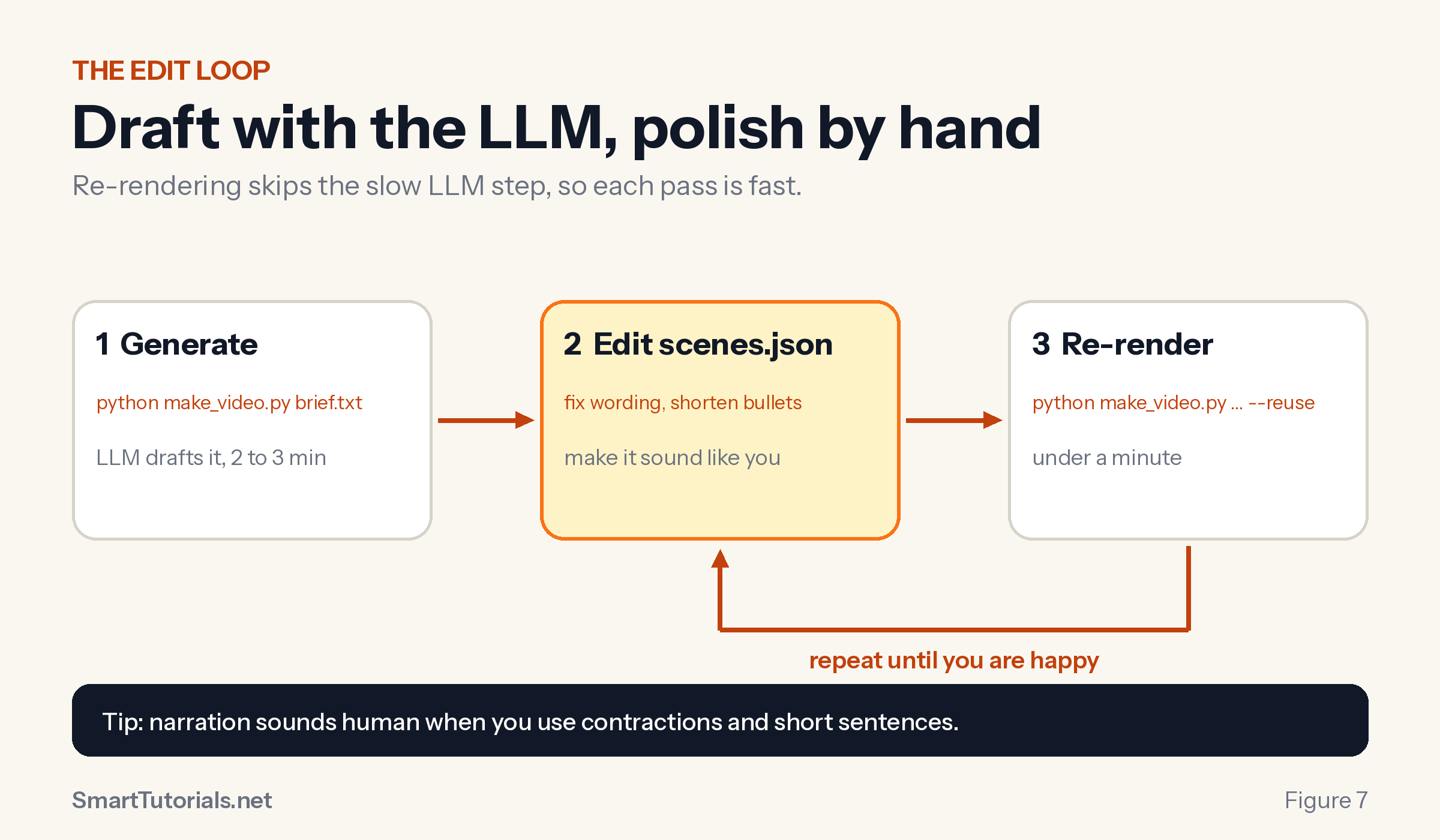
The LLM gives you a good first draft. Treat it as a draft.
- Open
docker_tips/scenes.jsonin a text editor. - Fix the wording: shorten bullets, correct facts, make the narration sound like something you would say aloud.
- Render again without calling the LLM:
./venv/bin/python make_video.py brief.txt --out docker_tips --reuse
Because the slow LLM step is skipped, a re-render takes under a minute. Repeat until you are happy.
Tips for narration that sounds human:
- Use contractions: “you’ll”, “it’s”.
- Keep sentences short, one idea each.
- Spell out symbols and acronyms the way you say them, or add them to
PRONUNCIATION. - Try
--speed 0.95for a calmer pace. - Listen to a few voices before you commit to one.
Troubleshooting
| Problem | Fix |
|---|---|
Connection refused on port 11434 |
Ollama is not running. Start it with ollama serve, or sudo systemctl start ollama. |
The LLM did not return valid JSON after 3 attempts |
Use a larger model or fewer scenes. Small models struggle with strict JSON. |
| First run is slow | The model loads into memory once. Later runs are faster while Ollama keeps it loaded. |
OSError: cannot open resource for the font |
Check that fonts/InstrumentSans.ttf exists, or change FONT at the top of the script. |
set_variation_by_name error |
Your font is not a variable font. Remove that line in font(). |
| The voice mispronounces a word | Add the word to PRONUNCIATION, or respell it in scenes.json, then run with --reuse. |
| Out of GPU memory | Ollama offloads to system RAM automatically, so it still works, only slower. Or use a smaller model. |
| Text is cut off at the screen edge | Shorten the headline or bullet. Headlines wrap to two lines, bullets do not wrap. |
Other systems
The Python and ffmpeg parts are cross-platform. On macOS, install ffmpeg with Homebrew. On Windows, install it with winget. Install Ollama from ollama.com. I have not tested these systems, so expect small differences in the setup commands.
Make it yours
- Branding. Change the gradient colors in
background()or paste your logo onto each slide with Pillow’sImage.paste. - Another language. Kokoro includes voices for several languages. Choose a matching voice and
langcode. - Background music. Add a quiet, royalty-free track in the final ffmpeg step with the
amixfilter. - Let the LLM design more. Add fields such as
accent_colorto the JSON and read them indraw_scene. - Real footage. Replace the slide images with screen recordings and keep the same voice and timing logic.
- Subtitles. You already have each scene’s narration and duration, so an
.srtfile takes only a few lines.
Frequently asked questions
Can I create a video with a local LLM without a GPU?
Yes. Ollama can run models on the CPU, and Kokoro runs on the CPU too. Everything is slower without a GPU, so pick a smaller model if the storyboard step takes too long.
Is this really free and offline?
After the one-time downloads, yes. Nothing is sent to a cloud service and no API key is needed. Ollama, ffmpeg, Pillow and Kokoro are open source projects, but check each license if you plan to use the videos commercially.
Which LLM works best?
I tested gpt-oss (20B), which follows the JSON format well but is slow on a small GPU. Smaller models are faster but less reliable, so check their output before you rely on them.
Can I use my own voice or a different language?
Kokoro ships with many voices and several languages, and you can switch with --voice. Using recordings of your own voice would mean replacing the text-to-speech step with your own WAV files. This tutorial does not cover that.
Can it generate real video footage?
No. It builds slide-style videos with motion and voice-over. To add real footage, replace the slide images with screen recordings and keep the same timing logic.
Summary
You now have a complete offline video pipeline. An open LLM writes the script, Kokoro speaks it, Pillow draws it and ffmpeg assembles it, with no API keys, no subscription and no data leaving your machine.
The video at the top of this article was made with exactly this script. If you build something with it, tell me in the comments what you would like to see added next. For more hands-on guides, browse the LLM Engineering and LLMs sections of this site.
Build with AI. Ship agents.


